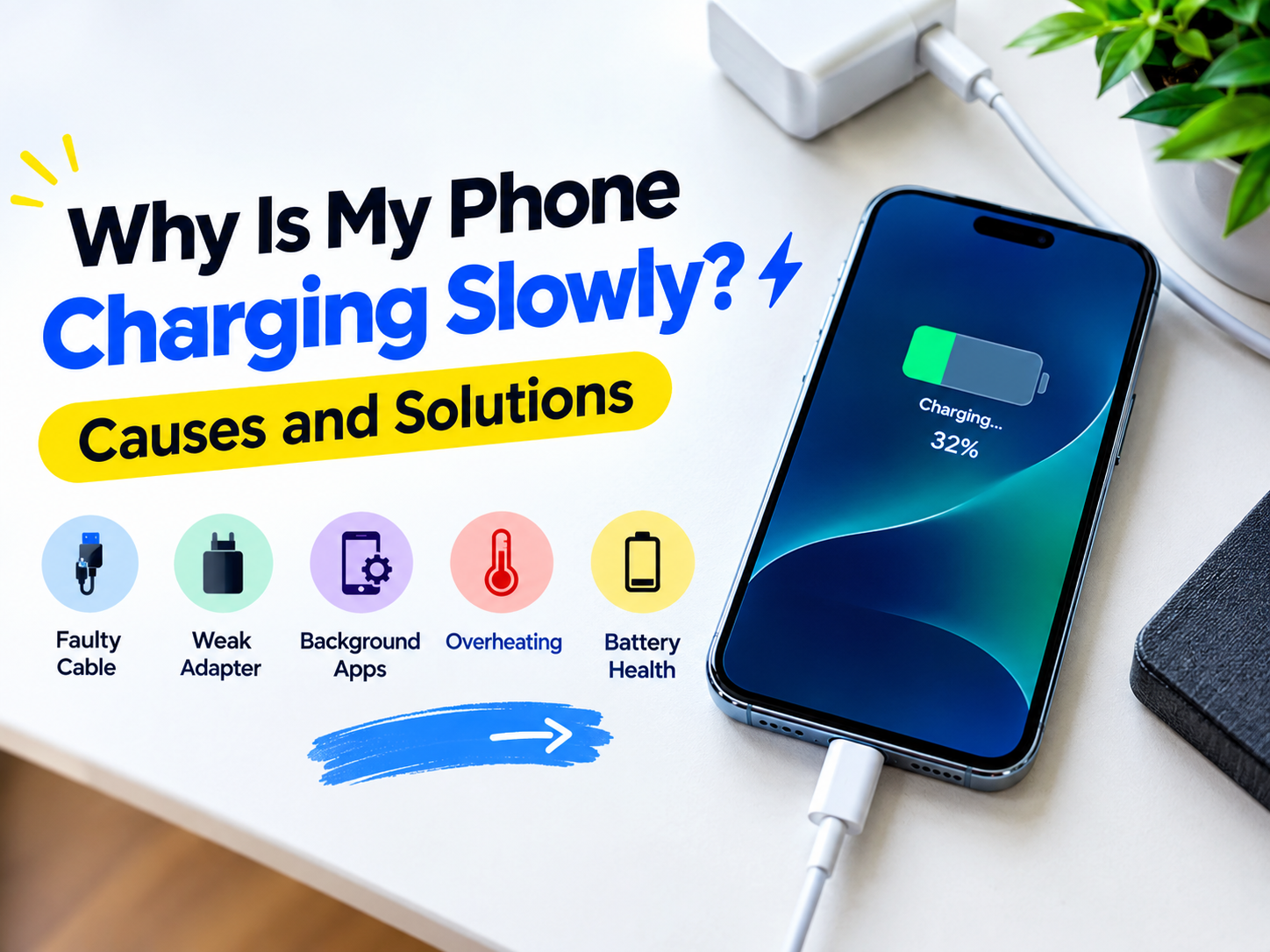
Have you ever plugged in your phone expecting it to charge quickly, only to find that the battery percentage barely increases? Slow charging can be frustrating, especially when you need your phone for work, online classes, gaming, navigation, or daily communication.
If you are wondering why is my phone charging slowly, the cause could be a weak charger, a damaged cable, a dirty charging port, overheating, background applications, or a battery-related issue. In many cases, you can identify and fix the problem without replacing your phone.
This guide explains the most common reasons for slow phone charging and provides practical solutions for Android phones and iPhones.
Why Is My Phone Charging Slowly?
Your phone may charge slowly when it receives less power than expected or reduces charging speed to protect its battery. The charging speed depends on several factors, including the adapter, cable, charging port, phone temperature, battery condition, and charging technology supported by your device.
Before purchasing a new charger or visiting a repair shop, try the following troubleshooting steps.
1. You Are Using the Wrong Charger
One of the most common reasons for slow charging is using a charger that does not provide enough power for your phone. Older adapters or low-output chargers may take considerably longer to charge modern smartphones.
For example, a phone that supports fast charging may charge more slowly when connected to a basic adapter. However, a charger with a higher wattage rating will not automatically make every phone charge faster. Your phone must support the appropriate power level and charging protocol.
How to fix it
- Check the charging requirements in your phone manufacturer’s documentation.
- Use a compatible, good-quality adapter from a trustworthy brand.
- Check the charger’s output specifications before buying a replacement.
- Avoid damaged, unreliable, or poorly made adapters.
- If supported, use a compatible USB Power Delivery or other manufacturer-supported fast charger.
Choosing the right adapter can improve charging performance while helping you avoid compatibility problems.
2. Your Charging Cable May Be Damaged
A charging cable can become worn after repeated bending, pulling, or daily use. Internal damage may affect how reliably power reaches your phone. A cable may still work while charging much more slowly than expected.
Low-quality cables may also lack the specifications needed for certain fast-charging modes. This is why the cable matters just as much as the adapter.
How to fix it
- Inspect the cable for cuts, exposed wires, bent connectors, or other visible damage.
- Try another compatible cable that supports your phone’s charging requirements.
- Make sure both ends are firmly connected.
- Replace damaged cables instead of continuing to use them.
If a different cable noticeably improves charging speed, the original cable may be the source of the problem.
3. Your Phone’s Charging Port Is Dirty
Dust, lint, and debris can accumulate inside a phone’s charging port, particularly when the device is carried in a pocket or bag. This buildup can prevent the cable connector from making a proper connection.
You may notice that the cable feels loose, charging starts and stops, or the phone charges only when the connector is positioned at a particular angle.
How to fix it
- Disconnect the charger before inspecting the port.
- Use a light to look for visible debris without inserting objects into the connector.
- Never use metal pins, liquids, or excessive force to clean the charging port.
- If debris is difficult to remove, or the port appears damaged, seek help from a qualified technician.
If your phone displays a moisture warning, disconnect the cable and follow the manufacturer’s instructions. Do not try to charge through a wet port.
4. Your Phone Is Overheating
Modern smartphones manage battery temperature automatically. If your phone becomes too hot, it may reduce charging speed to protect the battery and internal components.
Overheating can happen when you play demanding games while charging, use navigation in direct sunlight, run several intensive applications, or charge your phone in a hot environment.
How to fix it
- Stop demanding activities while charging.
- Move your phone away from direct sunlight and other heat sources.
- Remove a thick case temporarily if it traps heat and the manufacturer permits it.
- Place the phone on a cool, dry, well-ventilated surface.
- Allow the device to cool naturally before charging again.
Never put a hot phone in a refrigerator or freezer to cool it quickly. Sudden temperature changes and condensation can damage the device.
5. You Are Using Your Phone While Charging
If you continue to play games, watch videos, use video calls, or run navigation while charging, your phone consumes some of the power it receives. As a result, the battery may increase slowly even when the charger is working correctly.
Some applications also continue to use the processor, internet connection, GPS, or display when running in the background.
How to fix it
- Close demanding applications when you do not need them.
- Turn off the display while charging.
- Enable Airplane Mode if you do not need calls, messages, or mobile data.
- Try charging the phone without using it for 20 to 30 minutes and observe the result.
You do not need to close every application constantly. The main goal is to reduce intensive activity when you want your phone to charge faster.
6. Fast Charging Is Not Supported or Enabled
Some smartphones support fast charging only with compatible adapters, cables, and charging protocols. If one component is incompatible, the phone may fall back to a slower charging mode.
Some Android devices also offer a setting to enable or disable fast charging. The exact location and availability of this setting depend on the phone model and software version.
How to fix it on Android
- Open Settings on your phone.
- Look for Battery, Battery and Device Care, or a similar section.
- Check whether a fast charging option is available.
- Enable it if you want to use the feature and your device supports it.
- Use a compatible adapter and cable.
Menu names vary across manufacturers, and some phones manage fast charging automatically without a separate setting.
How to check charging on an iPhone
iPhones manage charging automatically according to the model, adapter, cable, temperature, and battery settings. Use a compatible power adapter and cable, and check Apple’s guidance for your specific iPhone if charging remains slow.
Optimized Battery Charging is designed to help reduce battery aging. It may pause or delay charging in certain circumstances, but it is not the same as a faulty charger.
7. Background Applications Are Consuming Too Much Power
Applications running in the background can use battery power even when the screen is off. Common examples include navigation apps, video streaming, games, cloud backups, and applications that frequently synchronize data.
If the phone consumes power almost as quickly as it receives it, charging can appear unusually slow.
How to fix it
- Open your phone’s battery settings and review application usage.
- Update applications that are behaving abnormally.
- Restrict background activity for applications that do not need constant access.
- Restart your phone if an application appears to be using excessive power.
Be careful not to disable essential background functions for messaging, security, or other applications that you rely on.
8. Your Phone’s Battery May Be Aging
Rechargeable batteries gradually lose capacity as they age and go through charging cycles. An older battery may hold less energy than it did when the phone was new.
Battery aging does not always mean that charging itself will be slow, but it can be associated with shorter battery life, unexpected shutdowns, or other charging-related symptoms.
How to check battery health
- iPhone: Open Settings and look for Battery, then Battery Health or Battery Health and Charging. The available information varies by model and iOS version.
- Android: Check Settings for Battery or Battery Health options. Availability depends on the manufacturer and device.
- Look for manufacturer service recommendations if the battery’s condition is poor.
If your phone’s battery is swollen, stop using and charging the device and arrange professional service. Do not press, puncture, or attempt to remove a swollen battery yourself.
9. Charging Slows Down Near 80% or 100%
It is normal for many smartphones to charge quickly at lower battery levels and gradually reduce charging speed as the battery approaches full capacity. This helps manage battery temperature and protect long-term battery health.
Some devices also use optimized or adaptive charging features to reduce the amount of time the battery spends at a full charge.
If charging is fast at first but slows down near 80% or 90%, the phone may be working as designed. However, if it charges unusually slowly from a low battery level, check the adapter, cable, temperature, and charging port.
10. Your Software May Need Attention
Software issues can sometimes affect battery usage or charging behaviour. A recently installed application, a temporary system issue, or outdated software may contribute to unusual battery drain.
How to fix it
- Restart your phone.
- Install official system updates when available and appropriate for your device.
- Update applications through the official app store.
- Check battery usage for applications that consume unusually high power.
A factory reset should not be your first step. If you are considering one, back up your important information and try simpler troubleshooting options first.
Can a Power Bank Charge Your Phone Faster?
A power bank can be useful when you are away from a wall outlet, but it will not necessarily charge your phone faster than a wall charger. The charging speed depends on the power bank’s output, your phone’s supported charging technology, and the cable you use.
If you need portable charging for travel, college, or work, compare the power bank’s capacity, wattage, ports, and compatibility before buying.
For example, you can check the Aisolove 10000mAh Digital Display Power Bank, which is listed with 22.5W fast-charging support. Confirm your phone’s compatibility and review the current product specifications before ordering.
You can also explore other accessories on Techify.pk to find products that suit your charging needs.
When Should You Get Your Phone Checked?
Basic troubleshooting can solve many slow-charging problems, but some issues require professional attention. Consider getting your phone checked if:
- Several compatible chargers and cables all charge the phone unusually slowly.
- The charging port is loose or visibly damaged.
- The phone repeatedly disconnects and reconnects while charging.
- The device becomes unusually hot during normal charging.
- The battery drains rapidly or the phone shuts down unexpectedly.
- You notice swelling, leakage, smoke, or a burning smell.
If you notice smoke, a burning smell, or a swollen battery, stop using the device, disconnect power if it is safe to do so, and seek qualified assistance. Do not continue charging it to test whether the problem disappears.
Frequently Asked Questions
Why is my phone charging slowly even with a fast charger?
Your phone may not support the charger’s charging protocol, or the cable may be incompatible. High temperatures, background activity, battery condition, and a dirty charging port can also reduce charging speed.
Does Airplane Mode make a phone charge faster?
It can help in some situations because it reduces certain wireless activities. The improvement depends on signal conditions and how much power your phone normally consumes while charging.
Why does my phone charge slowly after 80%?
Many smartphones automatically reduce charging speed as the battery approaches full capacity. This is a normal battery-management behaviour and can help protect battery health.
Can I use my phone while it is charging?
Yes, normal use is generally possible, but intensive activities such as gaming or video recording can increase power consumption and heat. This may slow charging.
Can a damaged cable make charging slower?
Yes. A damaged or unsuitable cable can affect charging performance and reliability. Replace damaged cables and use one that supports your phone’s charging requirements.
How can I make my phone charge faster?
Use a compatible charger and cable, keep the phone cool, avoid demanding applications while charging, and check the charging port for visible debris. If the problem continues, check the battery and device condition.
Final Thoughts
If you are asking why is my phone charging slowly, start with the simplest possible causes. Check your charger and cable, inspect the charging port carefully, let the phone cool down, and reduce heavy usage while charging.
If the problem continues after these steps, review your phone’s battery health and consider professional assistance. Choosing compatible charging accessories can also help you get the best performance from your device.
Looking for portable charging accessories? Visit Techify.pk or explore the Aisolove 10000mAh 22.5W Fast-Charging Power Bank to review its current features and compatibility.